How to make a photo into a video on iPhone
Open Tada, tap Make it Live, pick a photo and tap Save: it moves in Photos as a Live Photo. Open it there, tap the More button and choose Save as Video, and you have a short video you can post anywhere.
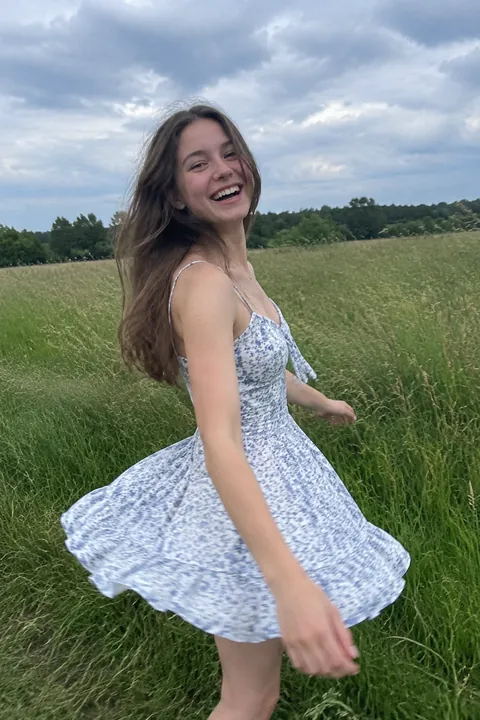
Turn one photo into a video
- Open Tada and tap Make it Live, then pick a photo. People, pets and views all work. So do screenshots: Tada frames the picture part first, and you can move the frame.
- Choose how it moves. Natural is quiet and candid: people blink, breathe and smile a little, and hair and clothes move. Lively is bigger: people laugh, turn their head or wave. Both use AI and take 20–40 seconds. For a free option made on your phone in about a second, try Breathe or Puff.
- Tap Save. Your tada goes to the Photos app as a Live Photo.
- In Photos, open the Live Photo, tap the More button in the top-right corner, then tap Save as Video.
- Find the new video in the Recently Saved album. The Live Photo stays in your library too.
There’s more on that last step in how to turn a Live Photo into a video. Starting from an old print? See how to animate old photos for tips on getting it into your phone first.
How long is the video?
Short. A Live Photo is about 3 seconds, like the ones your camera takes, and a tada is the same length. That’s enough for a story, a reply in a group chat or a profile clip, but it isn’t a movie.
Tada always starts from a photo, never from a video, and it doesn’t add music or sound. If you want a longer piece with a soundtrack, use the Photos app for that part, as below.
Make a video from several photos
For a longer video made of many photos, the Photos app can play an album as a memory movie set to music.
- Put the photos in an album. To include a moving photo, save your tada as a video first and add that video.
- In Photos, tap Collections, open the album, then tap the Play button to watch its photos and videos as a memory movie.
- To send a memory movie, tap the screen while it plays, tap the More button at the top, then tap Share and choose how to send it.
On an iPhone with Apple Intelligence you can also tap Collections, tap Memories, then tap Create and describe the movie you want. Photos picks the photos and sets them to music.
Free or AI
Breathe and Puff are free, as many as you like. Natural and Lively use 1 AI tada each, and you get 3 free. If an AI tada doesn’t work, you aren’t charged.
For AI tadas your photo is sent to Tada’s AI partners, OpenAI and xAI, to make the motion. Tada asks before the first time. See the Privacy Policy.
Questions
Can I turn a photo into a video on iPhone without an app?
Partly. The Photos app can turn a Live Photo into a video with Save as Video, and it can play an album as a memory movie. It can’t make a still photo move on its own; Tada does that and saves the result as a Live Photo.
How long is a video made from one photo?
With Tada, about 3 seconds, the length of a Live Photo. For something longer, put several photos and tadas in an album and play it as a memory movie.
Can Tada start from a video?
No. Tada always starts from a photo: one you took, a picture you saved or a screenshot.
Where does the video go?
When you tap Save as Video in Photos, the new video appears in the Recently Saved album. The Live Photo stays in your library too.
Sources: Apple Support: How to turn a Live Photo into a video on your iPhone · iPhone User Guide: Edit Live Photos on iPhone · Apple Support: Take and edit Live Photos · iPhone User Guide: Play memory movies in Photos on iPhone · iPhone User Guide: Share or delete memories in Photos on iPhone