Spatial scenes on iPhone
A spatial scene gives a regular photo a 3D effect that shifts as you move your iPhone. Open a photo in Photos, tap the Spatial Scene button and tilt your phone. It needs an iPhone 12 or later with iOS 26 or later.
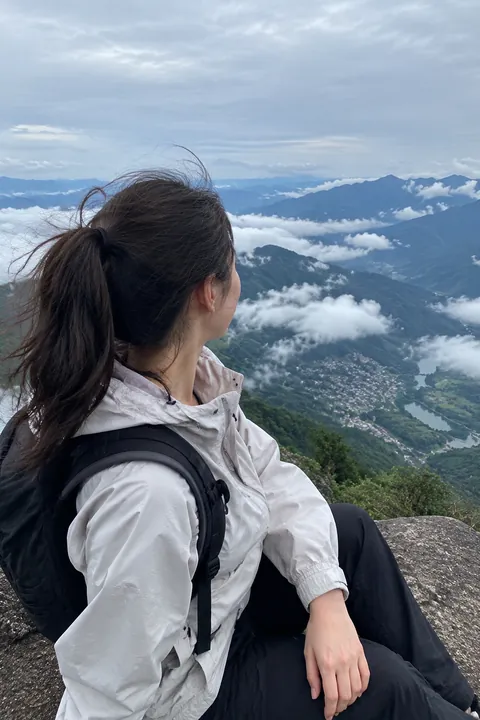
What a spatial scene is
Spatial scenes arrived with iOS 26. Apple says your iPhone uses computer vision on its Neural Engine to build a spatial scene from a flat 2D photo, so even pictures taken years ago, or on another camera, can get the effect. It doesn’t record anything new: it adds depth to the photo you already have, and the view changes as you move your iPhone in your hand.
View a photo as a spatial scene
- Open Photos and tap a photo to view it full screen.
- Tap the Spatial Scene button.
- Move your iPhone in your hand to see the 3D effect.
Apple lists this for iPhone 12 or later. The Photos widget on the Home Screen can show spatial scenes too.
Put a spatial scene on your Lock Screen
- Touch and hold the Lock Screen, then tap the add button to create a new Lock Screen.
- Choose a photo as the wallpaper.
- If the photo supports spatial effects, tap the Spatial Capture button to add the 3D effect.
- Tap Add or Done, then choose Set as Wallpaper Pair or Customize Home Screen.
When you move your iPhone, the Lock Screen photo comes to life in 3D. Apple says the 3D option is for photos that support spatial effects, on iPhone 12 and later.
Spatial scenes, spatial photos and Live Photos
Spatial photos are something else: you take them in the Camera’s Spatial mode on supported iPhone models, and they’re made to view in three dimensions on Apple Vision Pro. A spatial scene can come from any photo you already have. A Live Photo is different again: it records real motion around the moment.
| Spatial scene | Live Photo | |
|---|---|---|
| What you see | The photo shifts in 3D as you move your iPhone | About 3 seconds of the moment, with sound |
| Made from | Any photo, even old ones | A photo taken with Live on |
| How to play it | Tap Spatial Scene, then move your iPhone | Touch and hold the photo |
| On the Lock Screen | 3D effect with the Spatial Capture button | Plays when your iPhone wakes |
Want the photo itself to move?
A spatial scene adds depth as you move your phone, but the people in the photo don’t move. To make them move, Tada turns the photo into a Live Photo. Natural uses AI for candid motion: people blink, breathe and smile a little, and with no one in the frame, water ripples and leaves stir, while the camera stays still. It takes 20–40 seconds and uses 1 AI tada; you get 3 free. Breathe is free and made on your phone. AI tadas are made on Tada’s servers, and Tada asks before your first one (privacy).
Tap Save, then set the Live Photo as your wallpaper: see Live Photo wallpaper, or read what a Live Photo is.
Questions
Which iPhones support spatial scenes?
Apple lists iPhone 12 or later, and spatial scenes need iOS 26 or later.
Is a spatial scene the same as a spatial photo?
No. A spatial scene is made from any 2D photo and viewed on iPhone as you move it. A spatial photo is taken in the Camera’s Spatial mode on supported models and viewed in 3D on Apple Vision Pro.
Can I send someone a spatial scene?
You share the photo itself. Apple says sharing a photo to another iPhone, iPad or Apple Vision Pro lets that device re-create the same spatial scene; iPhone needs iOS 26 or later to view it.
Is a spatial scene a Live Photo?
No. A Live Photo records about 3 seconds of real motion and sound. A spatial scene adds a 3D effect to a still photo.
Sources: iPhone User Guide: View photos and videos · iPhone User Guide: Create a custom Lock Screen · iPhone User Guide (iOS 26): What’s new in iOS 26 · Apple: New features available with iOS 26 (PDF) · Apple Newsroom: Apple elevates the iPhone experience with iOS 26 · Apple Support: View spatial scenes in Apple Vision Pro · iPhone User Guide: Take spatial photos and record spatial videos for Apple Vision Pro