Turn any photo into a 0.5 pic
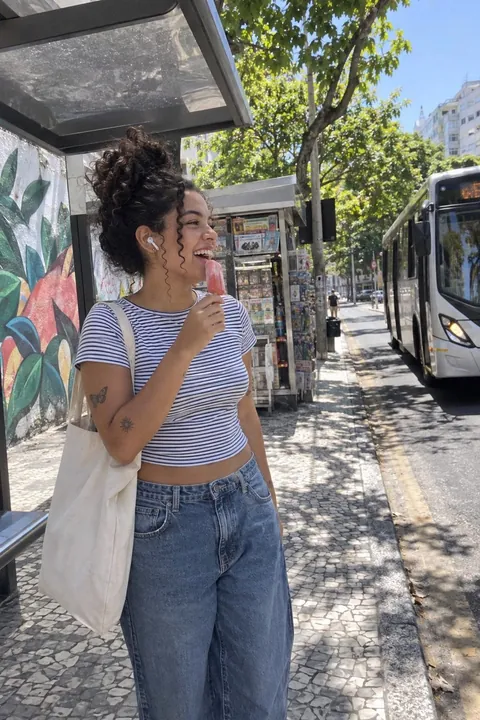
A 0.5 pic, or 0.5 selfie, is shot on the iPhone’s 0.5× Ultra Wide camera from up close, so whatever is nearest looks huge and you look tiny. Missed the shot? Tada’s 0.5 Pic look re-shoots a photo you already have that way, and makes it move.
How to take a 0.5 pic on iPhone
- Open Camera in Photo mode, with the back camera.
- Tap 0.5× to switch to the Ultra Wide camera. (Not every iPhone has one.)
- Hold your phone at arm’s length above you, or low and tilted up. Bring something close to the lens: a hand, a drink, an ice pop.
- Press a volume button, or set the timer, to take it.
Turn a photo you already have into a 0.5 pic
- Open Tada, tap Add effects and pick a photo of you. One where you’re holding something works best.
- In AI looks, choose 0.5 Pic and tap Make it.
- In about a minute you get the 0.5 version, moving: here she pushes the ice pop toward the lens and pulls it back.
- Tap Save. It goes to Photos as a Live Photo.
The AI draws you again from the new angle, so it looks like you but isn’t the same picture. Your photo is sent to our AI partners to make it; Tada asks before the first time. It uses 1 AI tada: you get 3 free, and Tada Pro gives you 30 a month (15 a week on the weekly plan). If an AI tada doesn’t work, you aren’t charged.
Questions
What is a 0.5 pic?
A photo taken with the iPhone’s 0.5x Ultra Wide camera, usually close up and from above or below, so whatever is nearest looks huge and the rest of the body looks small. It’s also called a 0.5 selfie.
How do I take a 0.5 pic on iPhone?
Open Camera in Photo mode with the back camera, tap 0.5x, hold the phone high above you or low and tilted up, and press a volume button or set the timer to take it. You need an iPhone with an Ultra Wide camera.
Can I turn a normal photo into a 0.5 pic?
Yes, with Tada’s 0.5 Pic look: Add effects, AI looks, 0.5 Pic. AI re-shoots your photo from a 0.5 angle and makes it move. It uses 1 AI tada; you get 3 free.
Sources: Apple Support: iPhone camera basics · Apple Support: Use iPhone camera tools to set up your shot