How to make a sticker from a photo on iPhone
Open the photo in Photos, touch and hold the subject, let go, then tap Add Sticker. Start from a Live Photo and you get an animated sticker that moves.
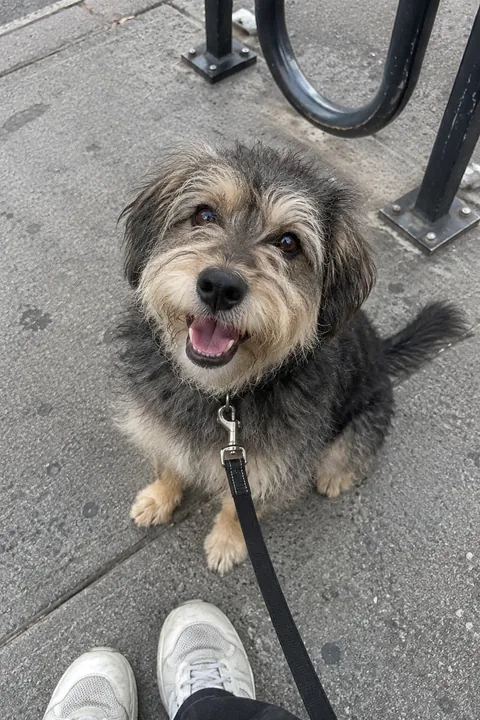
Make a sticker in Photos
- Open Photos and tap a photo to open it full screen.
- Touch and hold the subject, then let go.
- Tap Add Sticker. The sticker goes to your stickers menu, which you can open from the emoji keyboard or from Markup.
- Tap Add Effect for a look such as Outline or Comic, or to turn the Live Photo animation on or off.
- Tap the Close button to close the stickers menu.
Your stickers sync with iCloud, so they show up on your iPad, Mac and Apple Vision Pro when you’re signed in to the same Apple Account.
Make a Live Sticker that moves
Apple calls these Live Stickers. Use a Live Photo and the sticker plays its motion. You can make one without leaving a chat:
- In Messages, open a conversation, tap the Add button (+), then tap Stickers.
- Tap the Live Stickers button, then tap the Add button.
- Tap a photo, then tap the Add button.
- To add an effect, tap Add Effect, choose an option such as Comic or Shiny, then tap Done.
From any text field, you can also switch to the emoji keyboard, tap the Stickers button, then the Add Stickers button, and pick a photo.
Use your stickers
- In Messages: tap the Add button (+), tap Stickers, then the Live Stickers button. Send a sticker, or drag it onto a message bubble.
- On a photo: in Photos, tap Edit, then the Markup button. Tap the Add button, tap Add Sticker and drag a sticker onto the photo. More in how to add emoji to a photo.
- To delete one: in that same Add Sticker menu, touch and hold the sticker, then tap Remove.
The other way round: stickers on your photo
Apple’s tools cut a sticker out of your photo. Tada does the opposite and puts stickers on your photo. In Add effects, pick one of 19 packs (263 stickers in all, many of them free) and in about a second the whole set is on the person: hats on heads, glasses on eyes, blush on cheeks. Tap Shuffle for a new set, then drag, pinch or turn any sticker to fix it. Tap Save and the stickers keep moving in the Live Photo.
See how to add stickers to photos and these kawaii stickers.
Questions
How do I make a moving sticker from a photo?
Use a Live Photo. Touch and hold the subject in Photos and tap Add Sticker; the sticker keeps the Live Photo’s motion. Tap Add Effect to turn the animation on or off.
Where do my photo stickers go?
To your stickers menu, which you can open from the emoji keyboard, Markup or Messages. They sync with iCloud to your other Apple devices.
What effects can I add to a sticker?
Apple’s guides mention Outline, Comic and Shiny. Tap Add Effect after you make the sticker to try them.
Can I put stickers on a photo instead?
Yes. In Photos, use Markup and Add Sticker to place them by hand. Tada’s Add effects places a whole set on the person for you and saves them moving in a Live Photo.
Sources: iPhone User Guide: Make stickers from your photos · iPhone User Guide: Send stickers in Messages · iPhone User Guide: Add emoji, Memoji, and stickers with the keyboard · iPhone User Guide: Add text, shapes, stickers, and more with Markup · iPhone User Guide: Lift a subject from the photo background