How to do long exposure on iPhone
Take a Live Photo while holding your iPhone still, then open it in Photos, tap Live in the top-left corner and choose Long Exposure. Whatever moved blurs, like a camera with a slow shutter.
Take a long exposure, step by step
- Open Camera in Photo mode and check that Live is on: tap the Camera Controls button, tap Live and set it to On.
- Hold your iPhone still and tap the shutter. Keep still for a moment afterwards, because the Live Photo records 1.5 seconds after the picture too.
- Open the photo in Photos and tap Live in the top-left corner.
- Choose Long Exposure.
Apple describes it as a DSLR-like long exposure that blurs motion. To undo it, tap Live again and choose Live. The same menu has Loop and Bounce; see how to make a Live Photo loop.
What to shoot
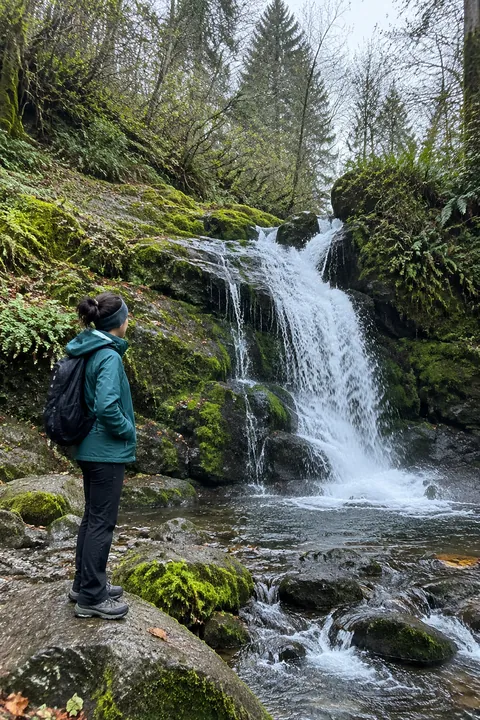
- Waterfalls and streams Running water turns smooth and silky.
- Waves on rocks The sea goes soft while the rocks stay sharp.
- Traffic at night Headlights and taillights stretch into streaks.
- Busy streets and stations People walking past blur while the buildings hold still.
- Fountains, sparklers and fairground rides Anything that moves against a still background.
Tips for a sharper result
- Steady the phone. A small tripod is best; a railing, wall or table works too. If the phone moves, everything blurs.
- Let one thing move. The effect looks best when only the water, lights or crowd moves and the rest of the scene stays put.
- Give the blur a sharp neighbor. A rock in the stream, a bridge over the traffic or a friend standing still makes the soft parts stand out.
- Take a few. Each Live Photo blurs a little differently, so shoot several and keep the best.
- Edit in Photos. Apple notes that editing a Live Photo in another app can remove the effects you added.
- Check your format. Live Photos aren’t available while ProRAW or HEIF Max is turned on.
Keep the water moving instead
Long Exposure turns movement into a still blur. If you’d rather watch the water flow, Tada’s Natural makes what’s already in a photo move, like ripples, steam or leaves, while the camera stays still. It works on any photo, even one taken with Live off: open Tada, tap Make it Live, pick the photo, choose Natural and tap Save. Natural uses AI: it takes 20–40 seconds and uses 1 AI tada (you get 3 free). Your photo is sent to our AI partners; Tada asks before the first time (see the Privacy Policy).
Questions
Why does my long exposure look blurry everywhere?
The phone moved while the Live Photo was recording. Long Exposure blurs everything that moved, so steady the phone on a tripod or a solid surface.
Can I undo Long Exposure?
Yes. Open the photo in Photos, tap Live in the top-left corner and choose Live to go back to the normal Live Photo.
Can I use Long Exposure on a photo I already took?
Only if it was taken as a Live Photo. Long Exposure needs the movement a Live Photo records; a still photo has none.
Sources: iPhone User Guide: Edit Live Photos on iPhone · Apple Support: Take and edit Live Photos · iPhone User Guide: Take Live Photos with your iPhone camera