Google Photos Photo to video, and another way on iPhone
In the Google Photos app, tap Create, then Photo to video, add a photo and choose Subtle movements or I’m feeling lucky: Google makes a six-second video clip. If your photos live in the iPhone’s Photos app, Tada makes a photo move and saves it there as a Live Photo.
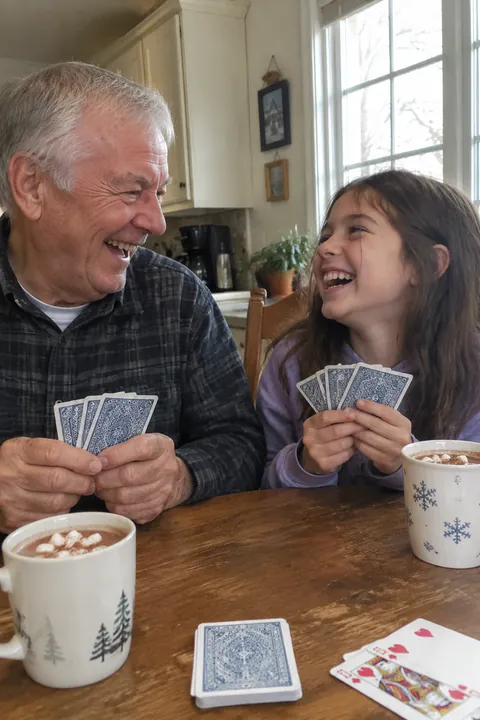
How to use Photo to video in Google Photos
- Open the Google Photos app on your iPhone. At the bottom, tap Create, then Photo to video.
- The first time, tap Try Now. Then tap Add photo and pick a photo, or take a new one with the camera.
- Choose an effect. Subtle movements adds realistic motion like waving or smiling. I’m feeling lucky may be subtle, or bigger, like dancing, confetti or balloons. If you’re 18 or over, you can type a prompt instead.
- Wait a few moments, then tap Save or Share.
Google lists a few conditions: the photo must be backed up to Google Photos, you need a network connection and a personal Google Account, you must be at least 13, there’s a daily limit on how many you can make, and it isn’t available in every region. The video is saved to the day you made it, not the day the photo was taken, and it may contain audio. Google adds a visible watermark and an invisible SynthID watermark.
How Tada is different
| Google Photos Photo to video | Tada | |
|---|---|---|
| Where it saves | Google Photos | The iPhone’s Photos app, as a Live Photo |
| Length | Six-second video | About 3 seconds, like any Live Photo |
| Ways to move | Subtle movements, I’m feeling lucky, or a prompt (18+) | Breathe and Puff (free, on your phone), Natural and Lively (AI) |
| More you can do | Remix, collages, highlight videos | Stickers that move, doodles, AI looks |
| Devices | Android and iPhone | iPhone only |
Make a photo move with Tada
- Open Tada and tap Make it Live, then pick a photo from your camera roll.
- Choose how it moves. Breathe makes people breathe softly and Puff puffs up whatever you tap; both are free and made on your phone in about a second. Natural and Lively use AI: people blink, smile, laugh and turn their heads, and pets look around.
- Tap Save. It’s in Photos as a Live Photo. Touch and hold it to see it move, or send it in Messages.
Need a video file? Open the Live Photo in Photos, tap the More button, then tap Save as Video. For a step-by-step version, see how to make a photo into a video.
Natural and Lively use 1 AI tada each (you get 3 free). Your photo is sent to Tada’s AI partners, OpenAI and xAI, and Tada asks before the first time. See the Privacy Policy.
Which to use
If your photos already back up to Google Photos and you want a longer clip, or want to describe the motion yourself, Photo to video is right there. If you keep your photos in the iPhone’s Photos app and want a Live Photo you can send in Messages, with free options and stickers or doodles, use Tada. Working with an old family picture? See how to animate old photos.
Questions
Does Google Photos Photo to video work on iPhone?
Yes. Google’s help center has steps for iPhone and iPad: open the Google Photos app, tap Create, then Photo to video. It isn’t available in every region.
How long are Google Photos Photo to video clips?
Google describes them as six-second video clips.
Where is the Google Photos video saved?
In Google Photos, on the day you made it rather than the day the photo was taken.
Can I save a tada as a video?
Yes. Open it in the Photos app, tap the More button, then tap Save as Video. The video appears in the Recently Saved album.
Sources: Google Photos Help: Use AI to create with Google Photos (iPhone & iPad) · Google Photos Help: Make creations with Google Photos (iPhone & iPad) · Google: Transform your photos into videos and remix your pics in Google Photos · Apple Support: How to turn a Live Photo into a video on your iPhone